.png)
City/Town
Create a new City/Town.
Go to Setup/ City/Town.
Select the “+” sign at the right end of the search bar.

Enter the City/Town name.

The status is Active.
Select Save and confirm.

The City/Town is created and shown on the display.

Edit City/Town
Edit the name of the City/Town.
Go to Setup /City/Town.
Click on the edit icon at the right end of the City/Town.

Edit the name.

Select Save and confirm it.

The name gets edited and updated on the display.

Delete City/Town
A City/Town can be deleted if there are no users/ Teams/ Churches/Groups within that City/Town. If it is a Random City/Town, you cannot delete it until you remove that user from User Management.
Scenario 1: Delete Active City/Town
Go to Setup/City/Town
Click on the delete icon at the right end of the City/Town.

Confirm the pop-up with delete.

It gets deleted and removed from the display.
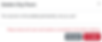
If there is relevant data, an error message appears.

Scenario 2: Delete Random City/Town
Go to Setup/City/Town.
Check for the Random City using the filter.

You cannot delete the City/Town until you remove the user registered with this City/Town.
Go to App Administration/User Management.
Search by using the filter “Only Show Approval Required City/Town”

It displays the users with the Random City/Town.
Assure that the user data is not needed and delete all the users who registered within the Random City/Town.
Now, Go to Setup/ City/Town Menu.
Click on the delete icon at the right end of the Random City/Town.
Confirm the pop-up with delete.

It gets deleted and removed from the display.
If there are any other random users registered within that same Random City/Town exists, it restricts from deleting the City/Town.
City/Town